Chore HQ for Kids
About the Screens (more info coming soon)
Start or Join a Family
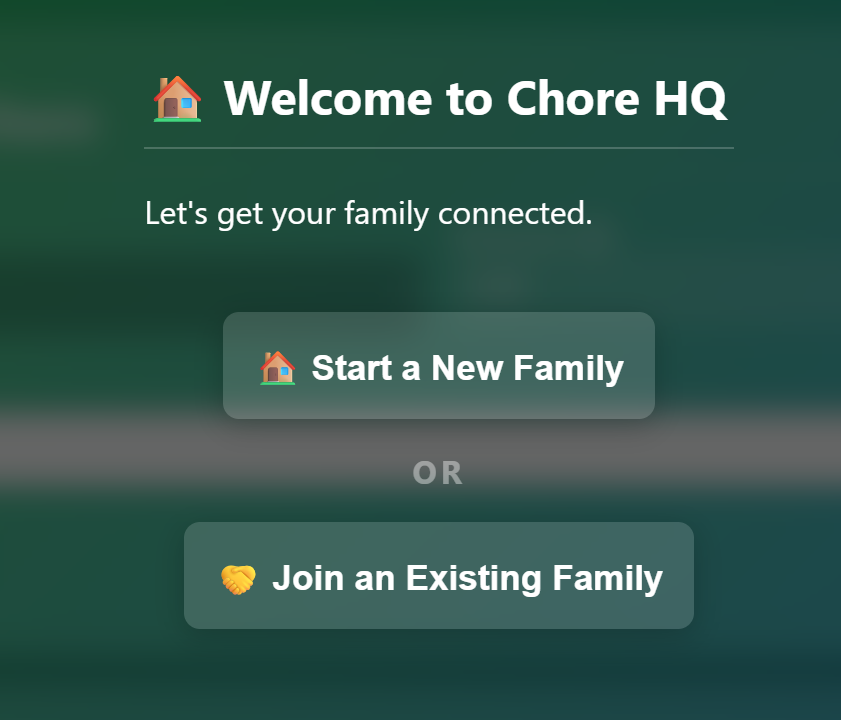
First User/Head of Household starts a family for their members to join. They will be the admin
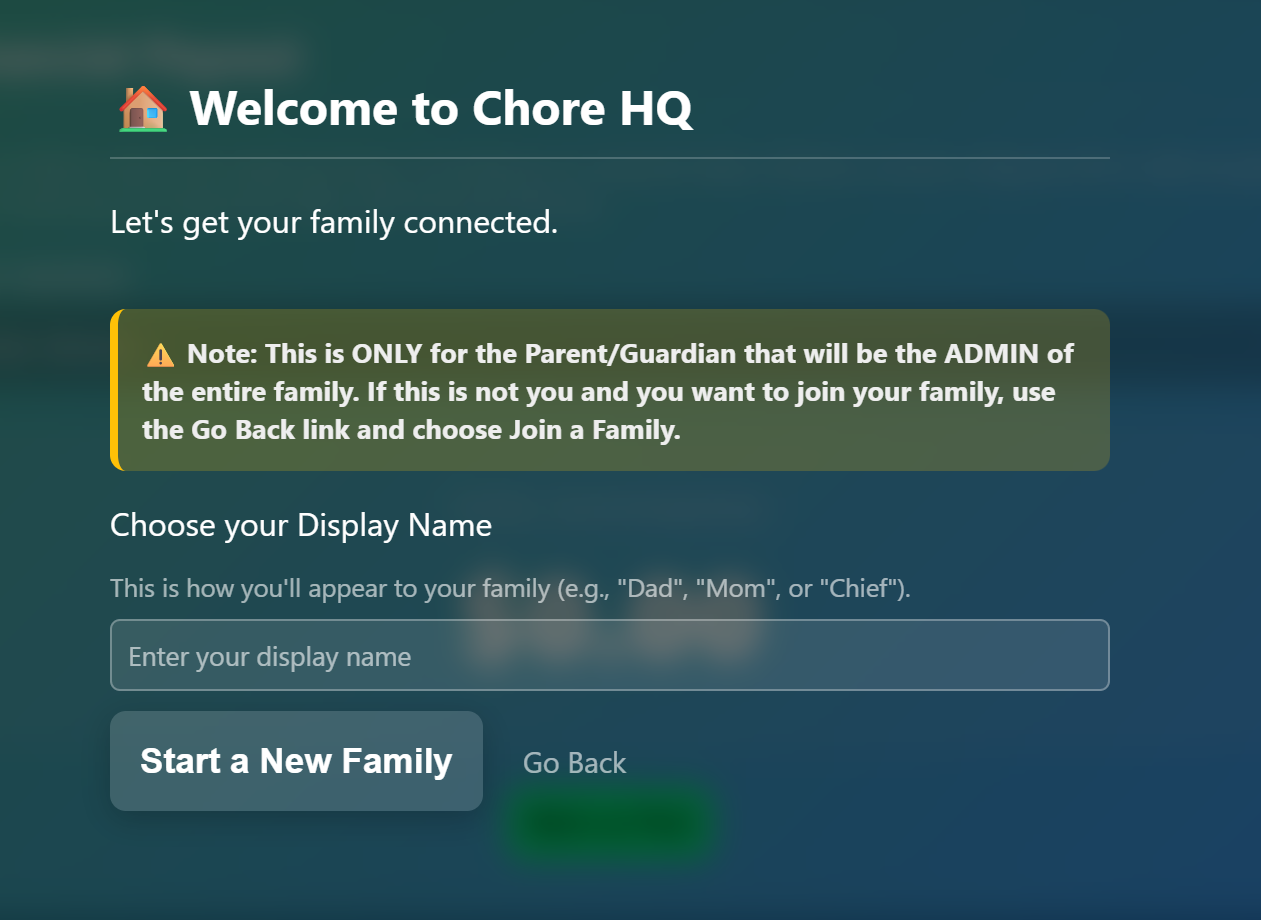
Starting a Family requires you to pick a screen name for inside the application.
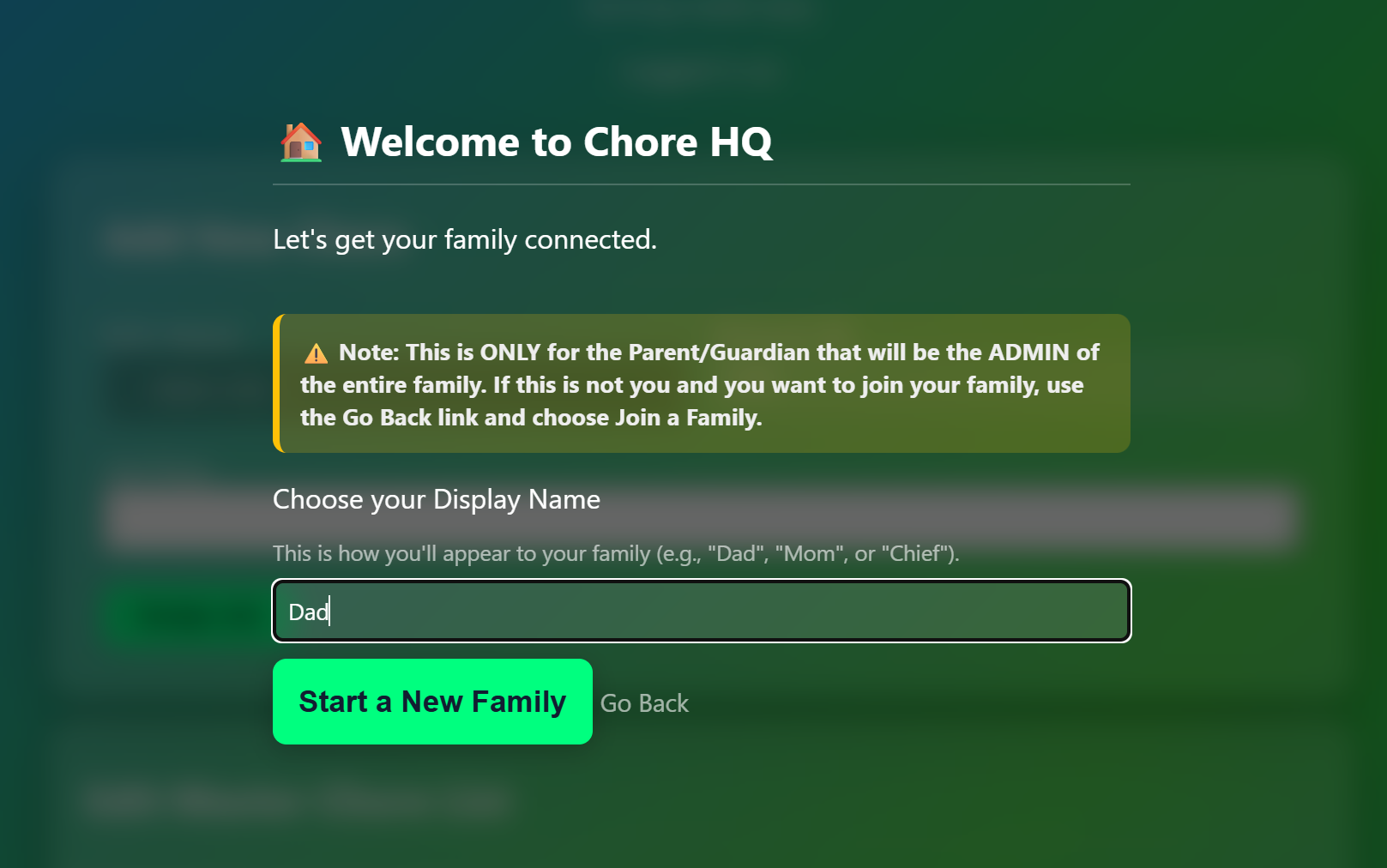
Joining a Family
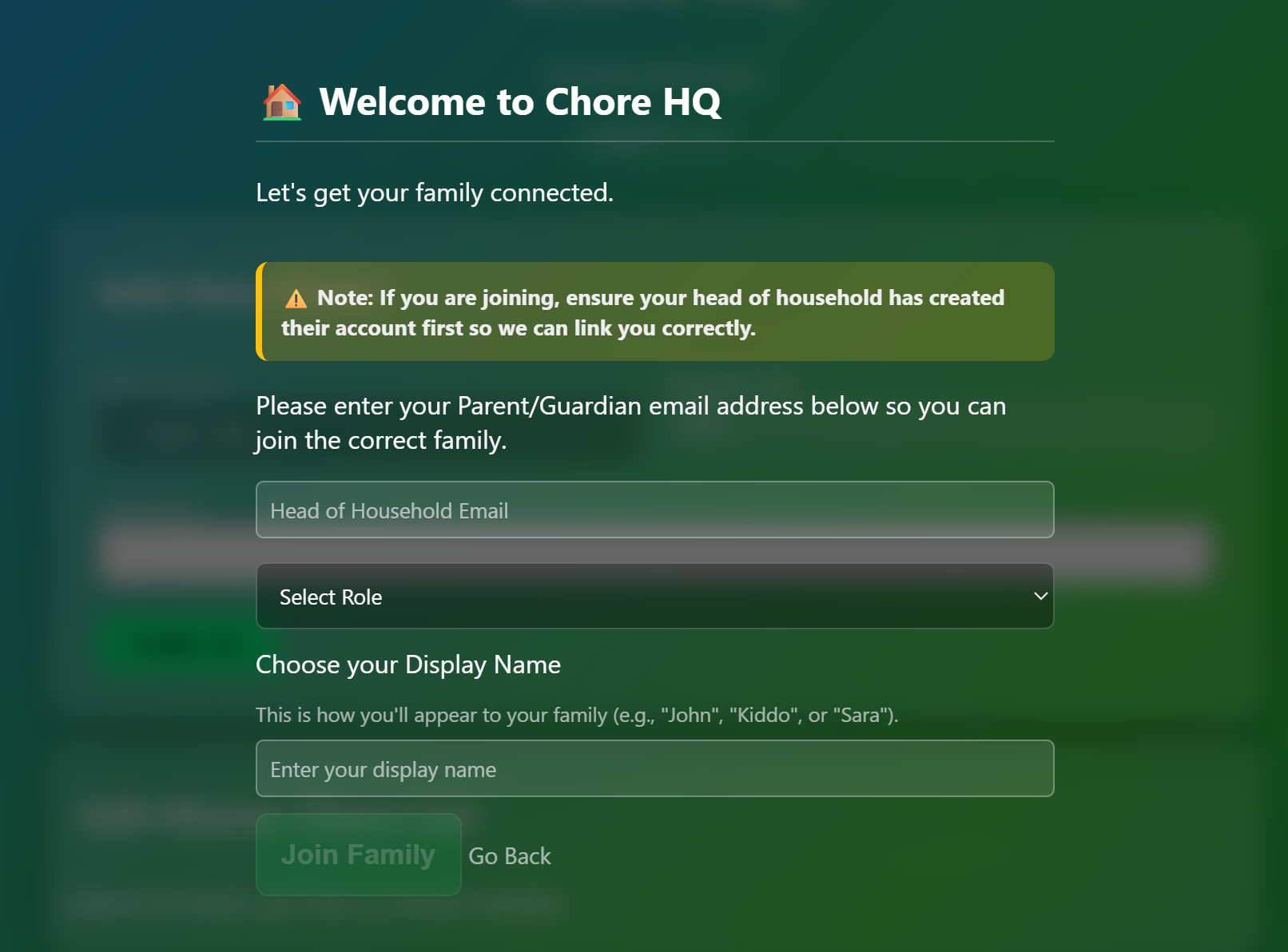
Joining a family as another parent/guardian, choose Parent as your role. Every member joining the family has to verify the Head of Household/Admin email address so we route you to the correct family.
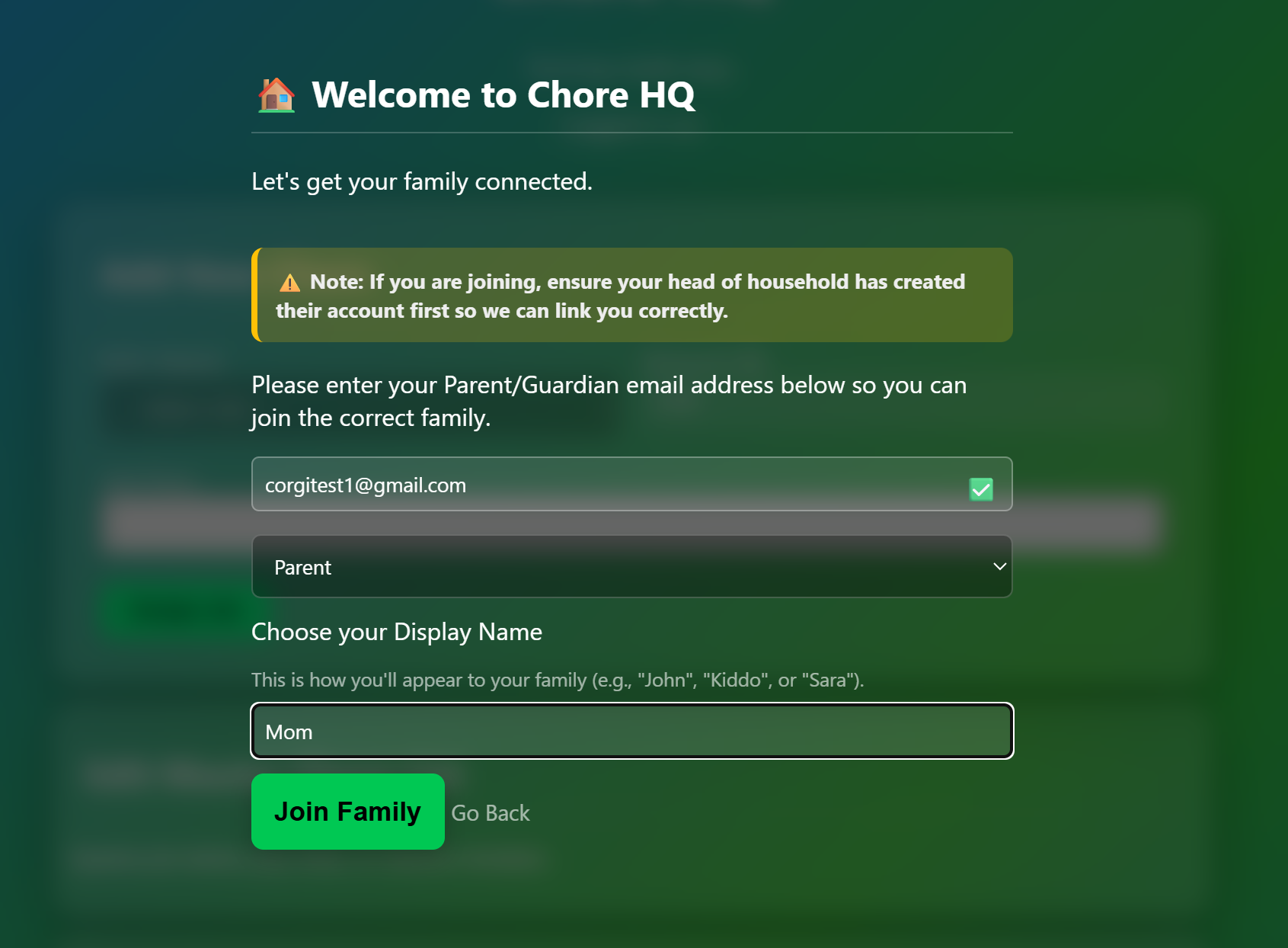
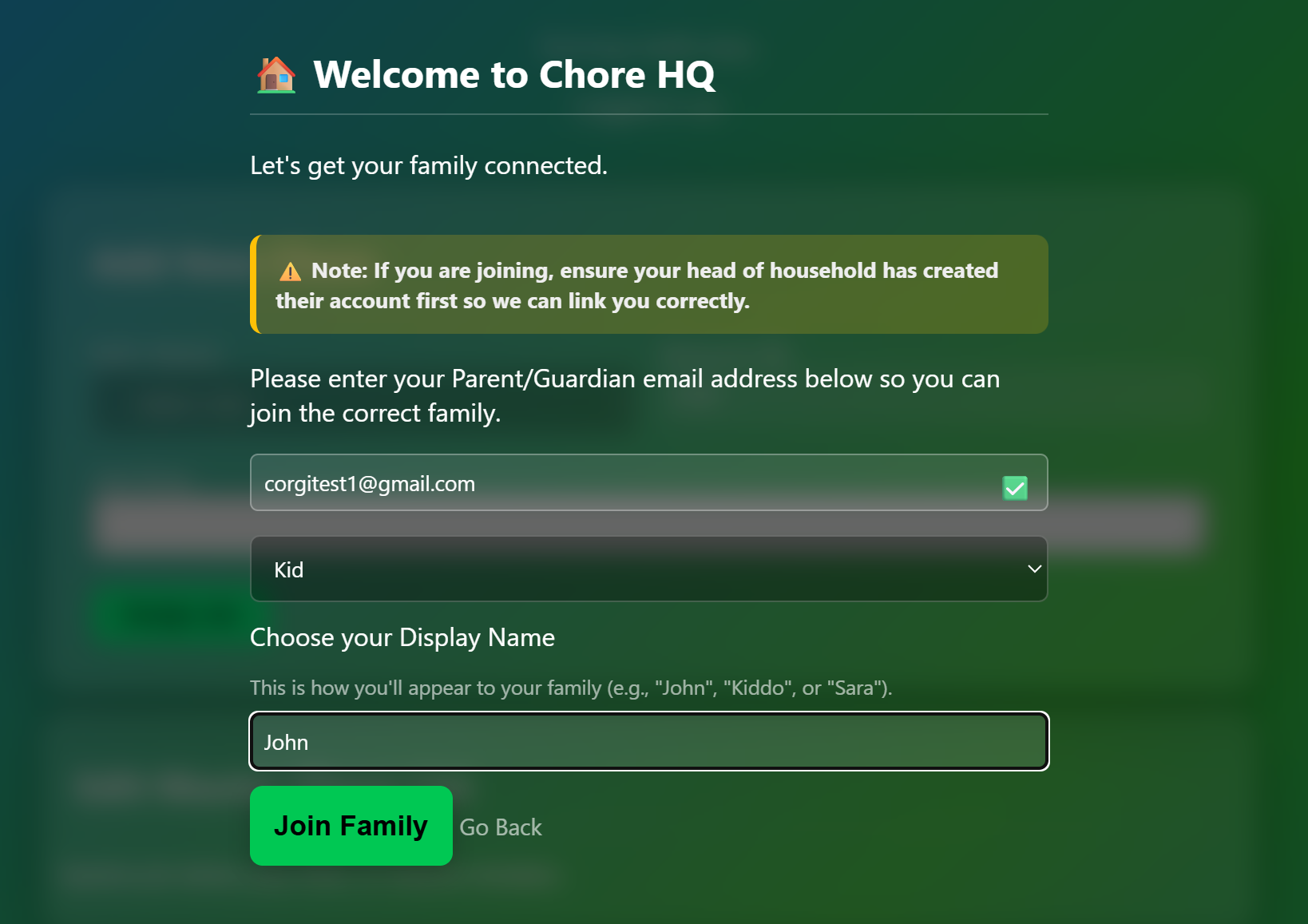
The kids who get assigned the chores will join and choose the Kid role. If you have kids that you do not want having their own accounts, skip this part and any parent/guardian role can add them later.
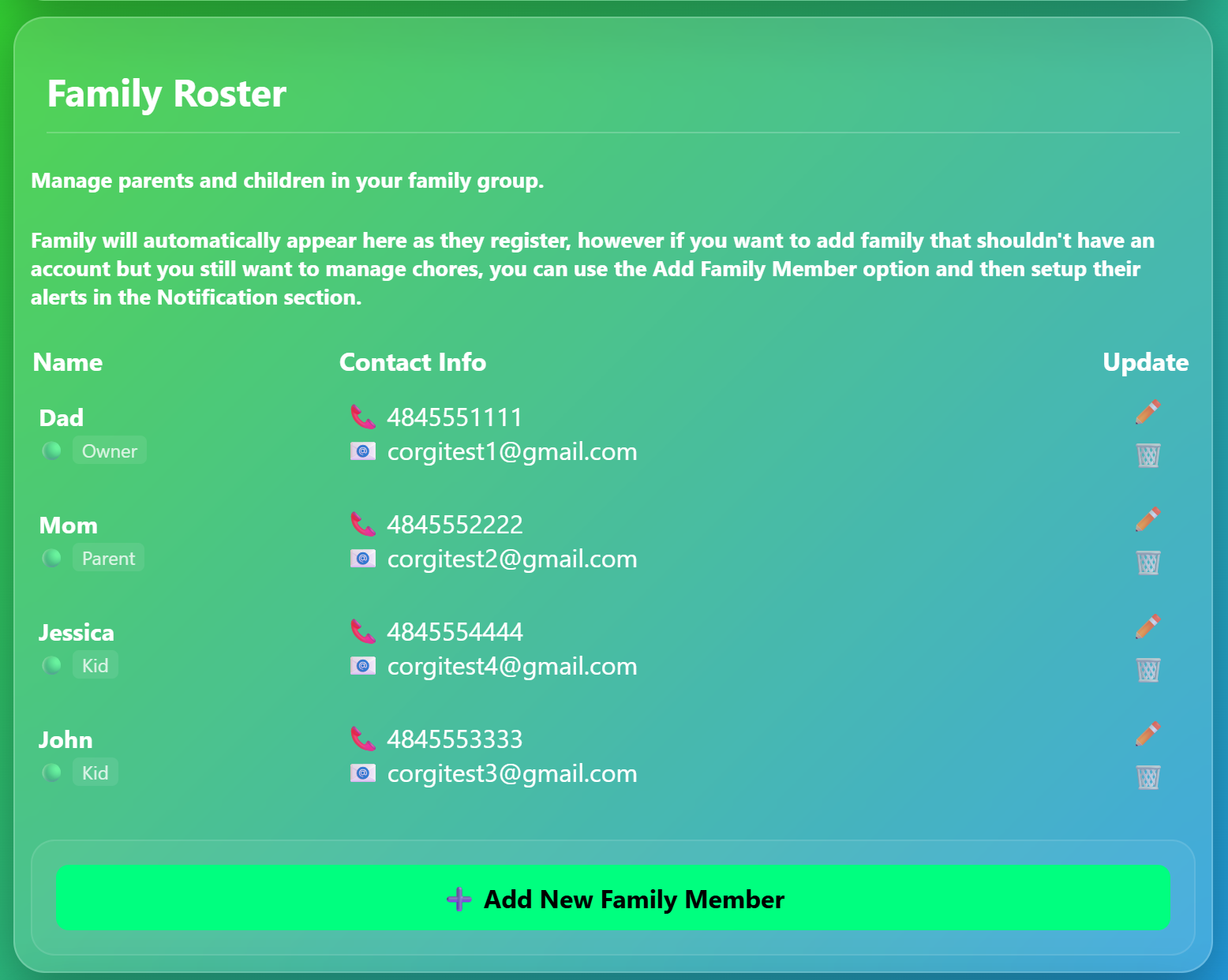
Inside the app: Family Roster allows you to add manually, delete, or rename family members if you are a Parent/Guardian role. This is where if you have kids you do not want having login access to Chore HQ you will add them here.
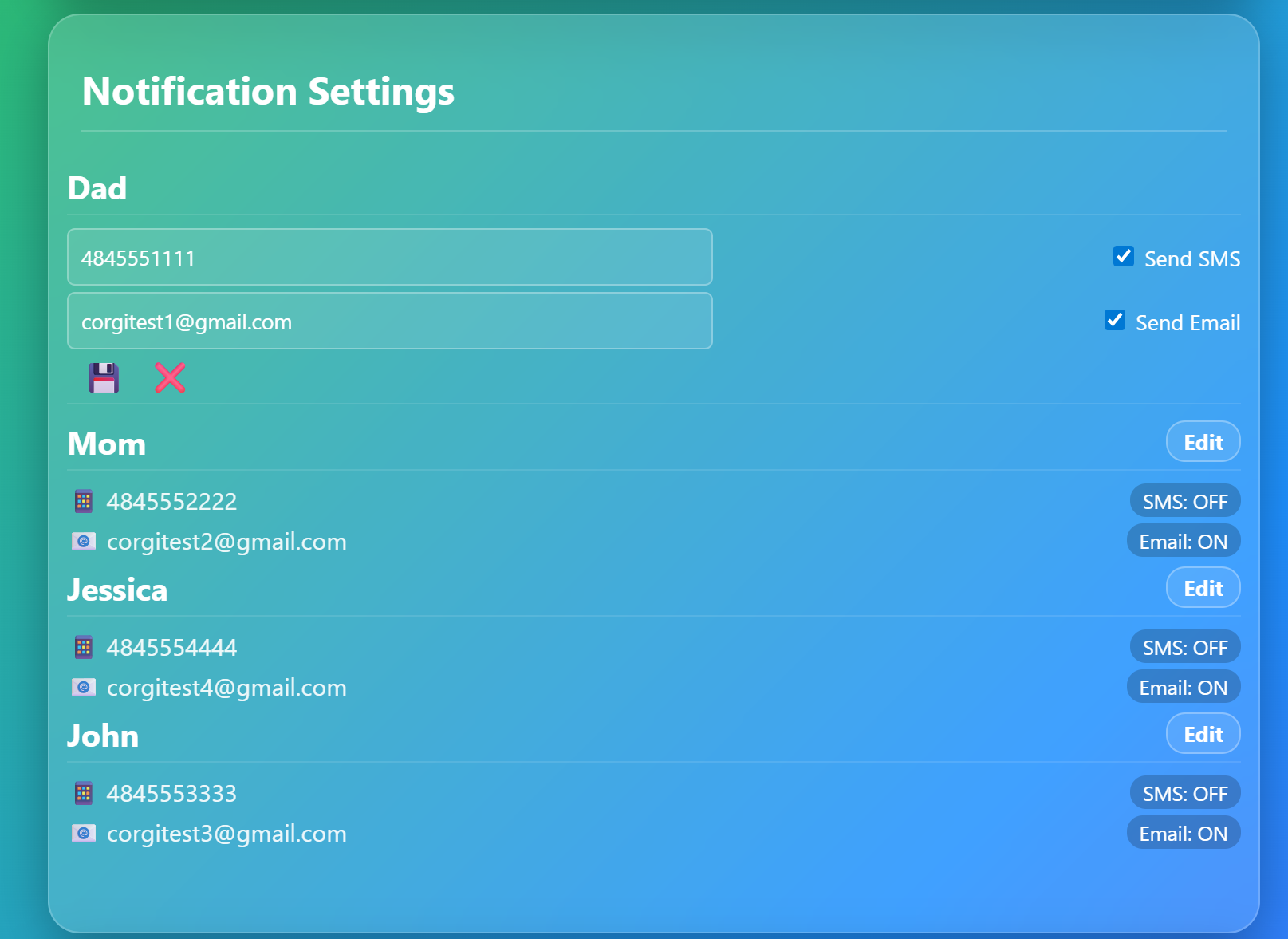
Inside the app: Notification settings are where a parent/guardian can turn on and off SMS or Email on a per user level.
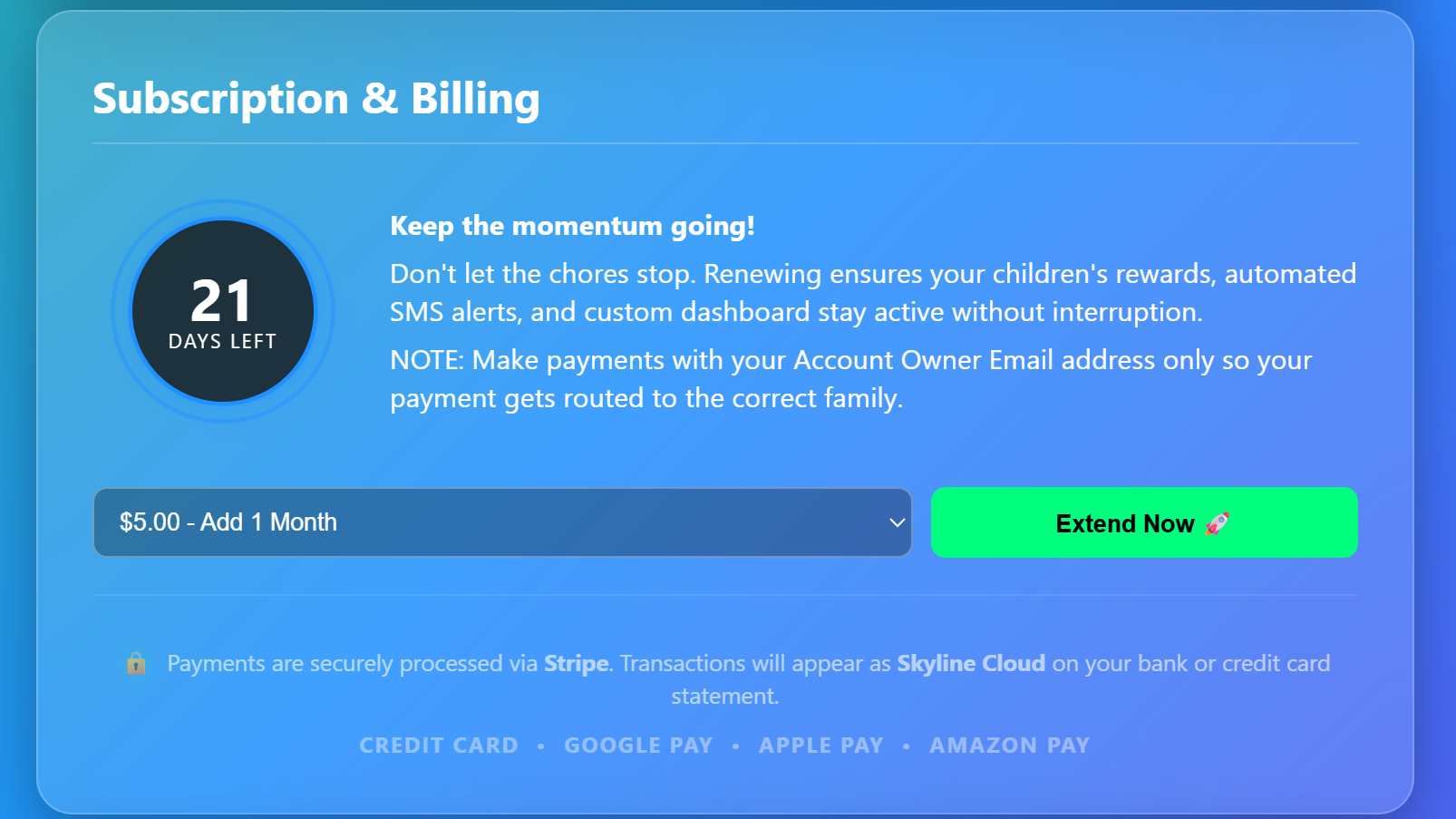
Inside the app: Subscription and Billing allows the family owner to view how much time is left on their subscription. More time can be added directly with Stripe Payment Services for $5 a month, which covers the entire family and all members. This helps us pay for our Toll-Free number, SMS system, Web Hosting and Cloud Server Space. As the application grows, we will add a rewards system.
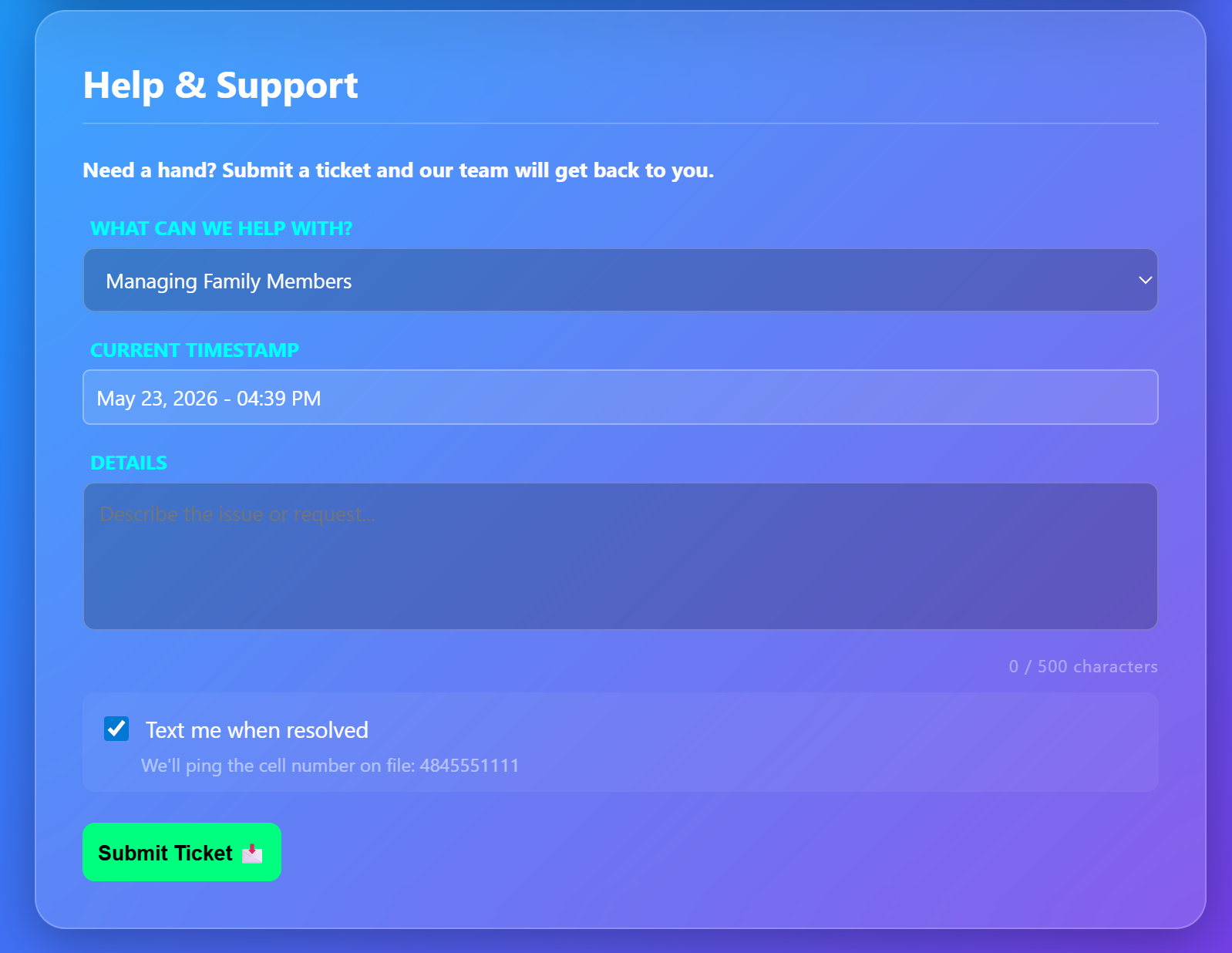
Inside the app: Easy to use Support and Ticket System
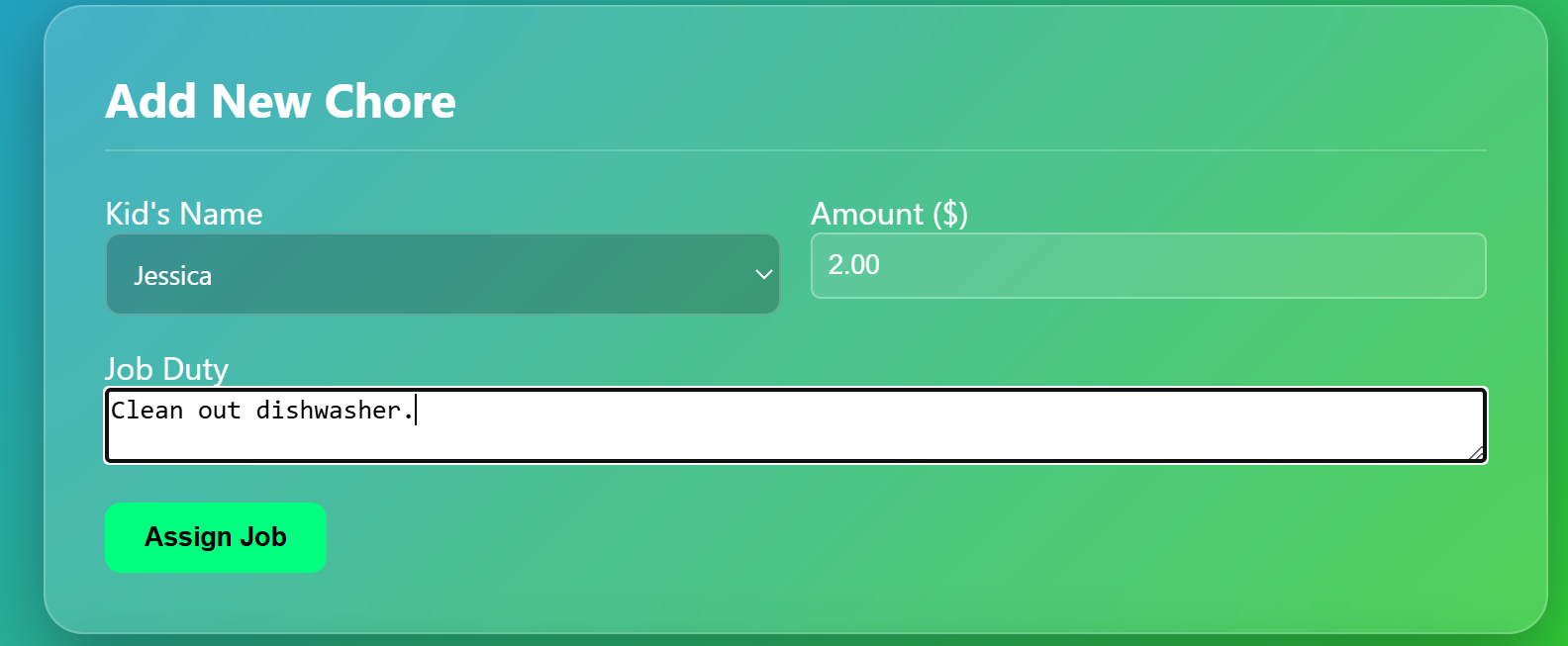
Parents/Guardians can Assign chores by simply choosing a Child's name, assign a value, and provide a description or instructions.
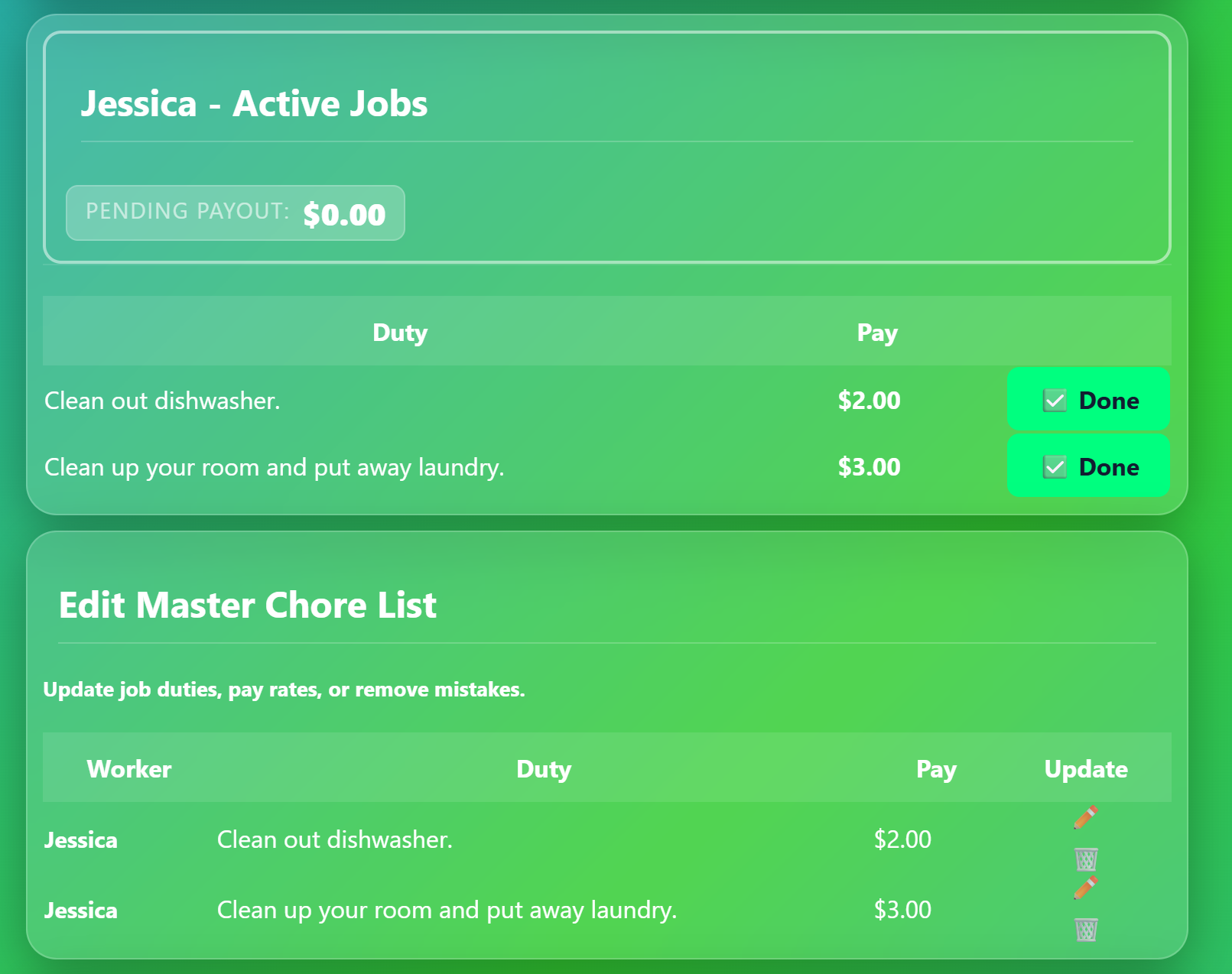
Viewing assigned chores
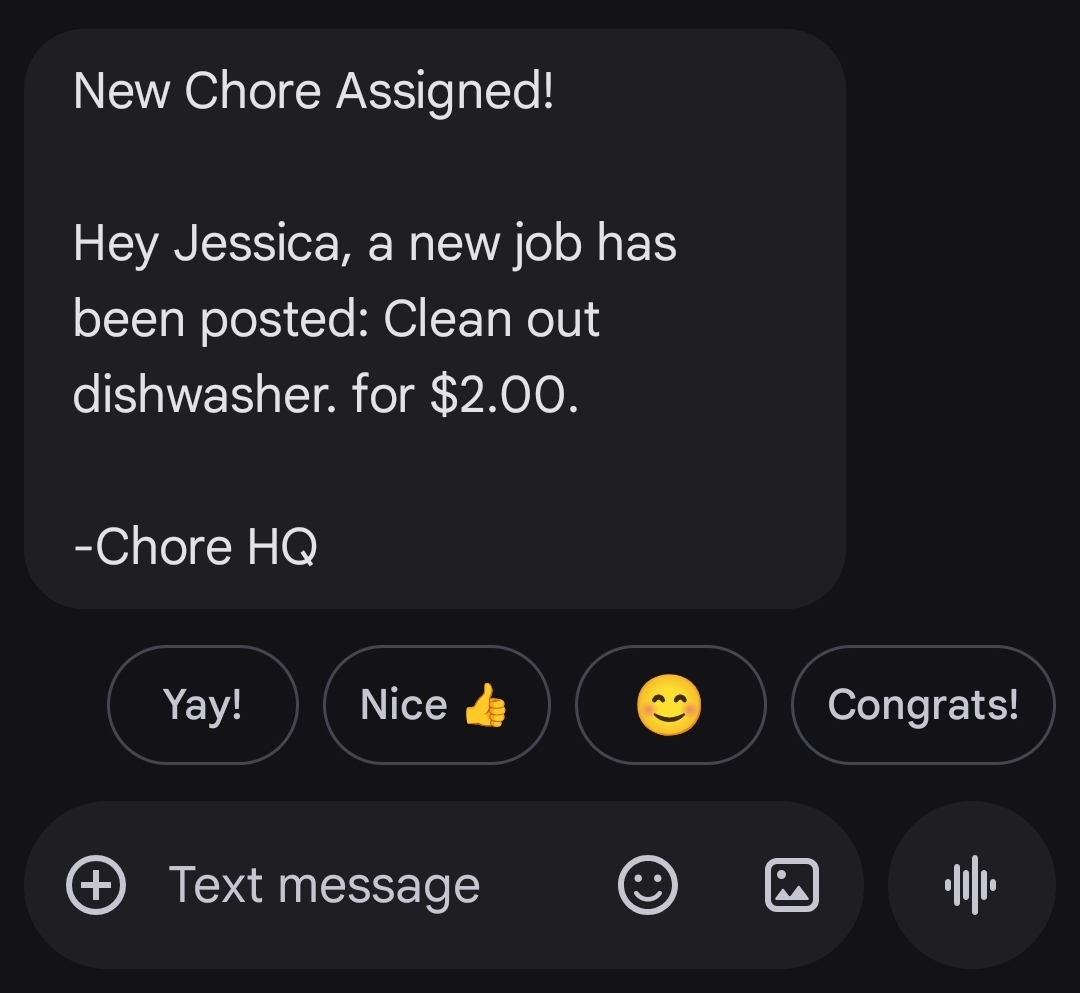
Automated text message SMS sent to everyone who has opted in/notifications set to ON to receive texts.
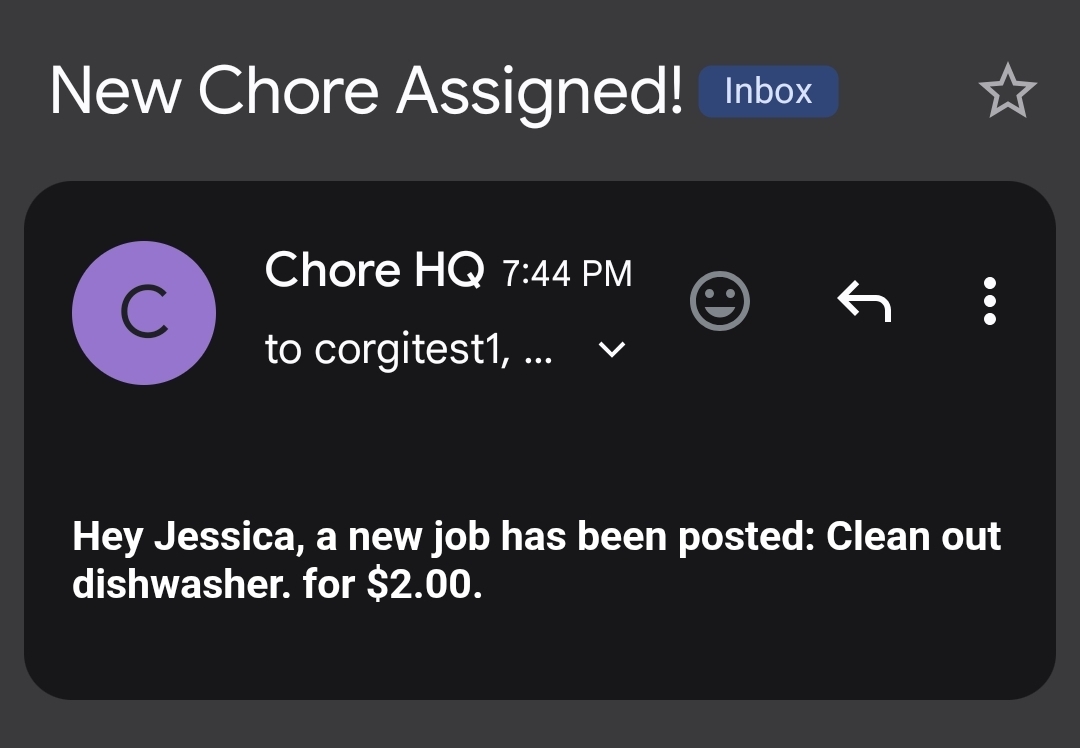
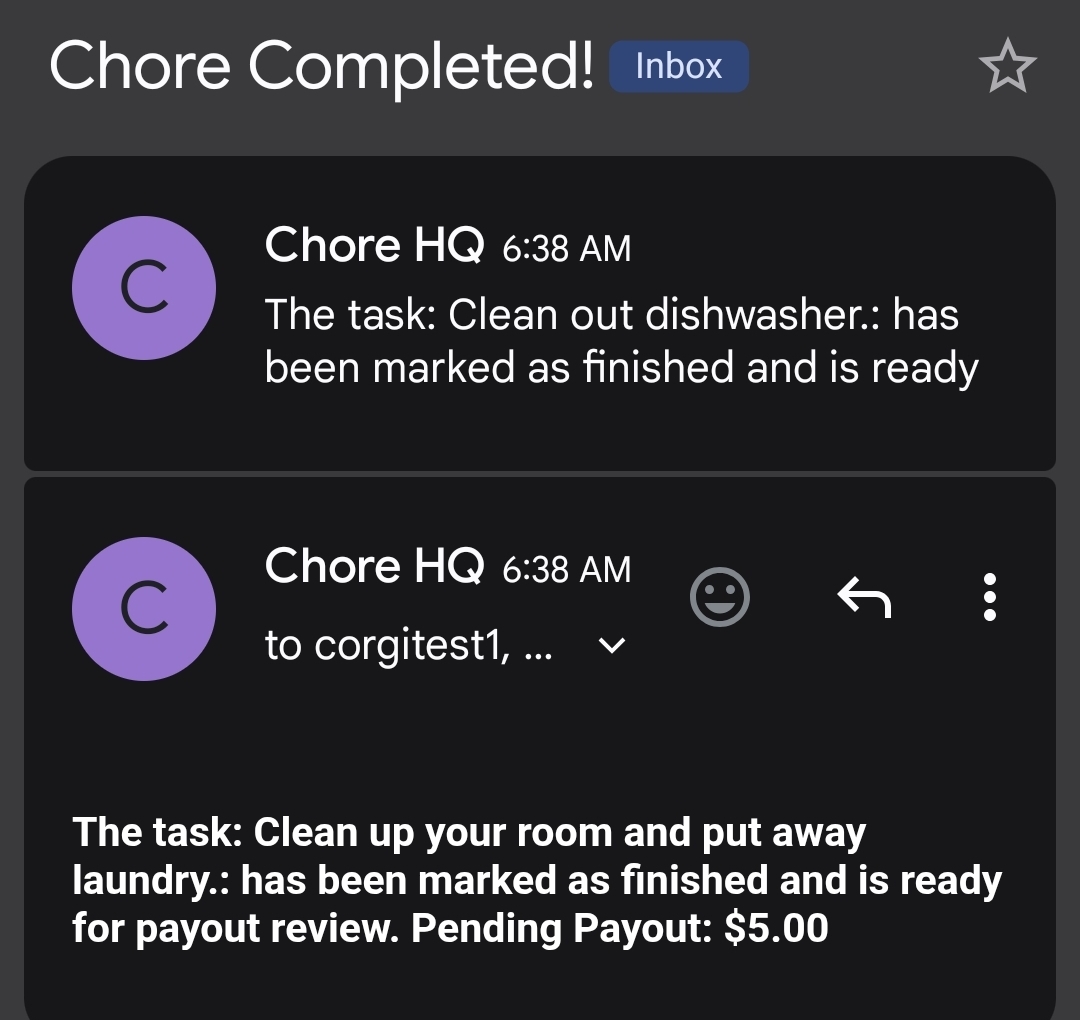
Automated email notifications sent to all who opted in for emails.
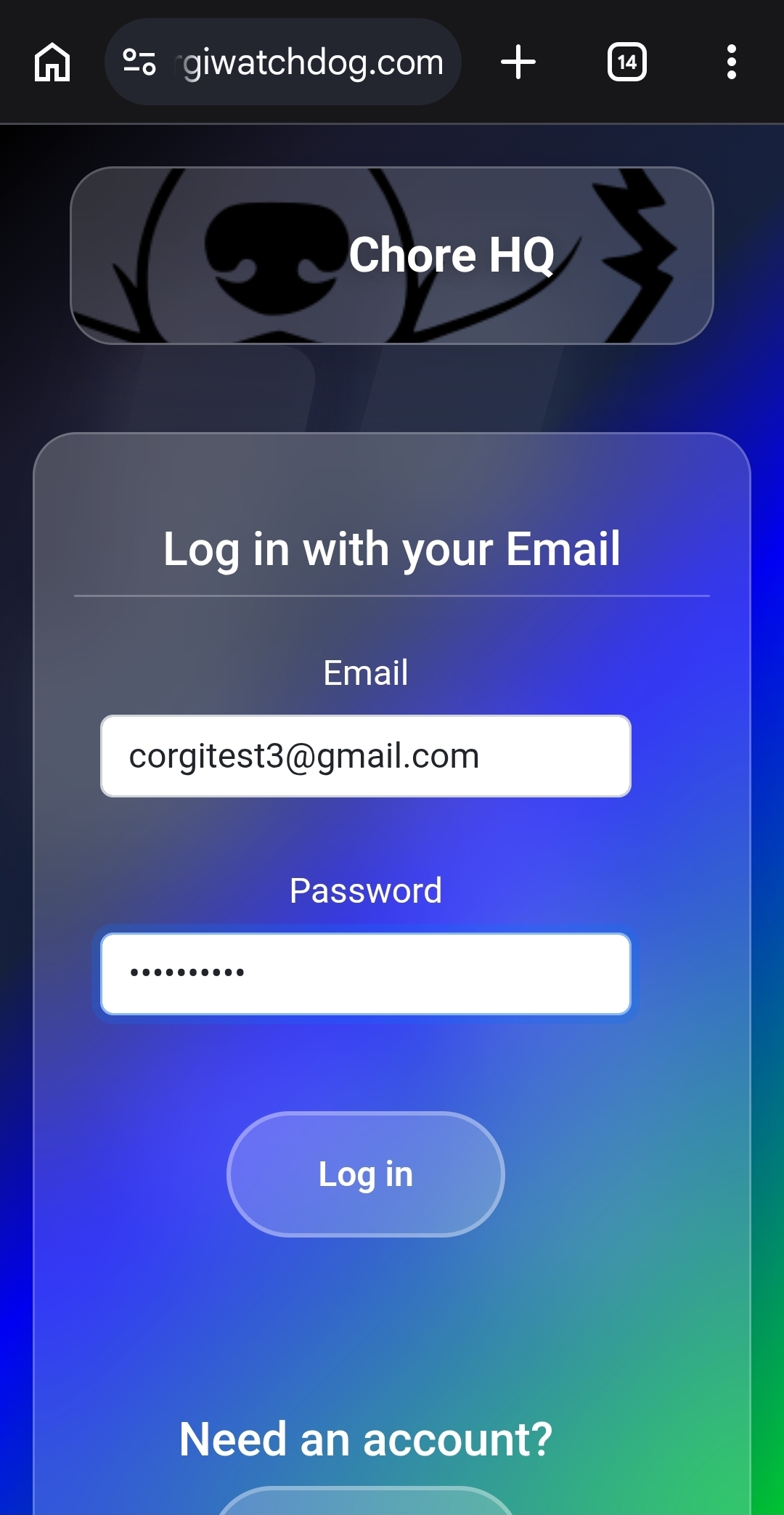
The login screen for Chore HQ and where kids will go to log in to complete and view their assigned chores.
Viewing Assigned Chores
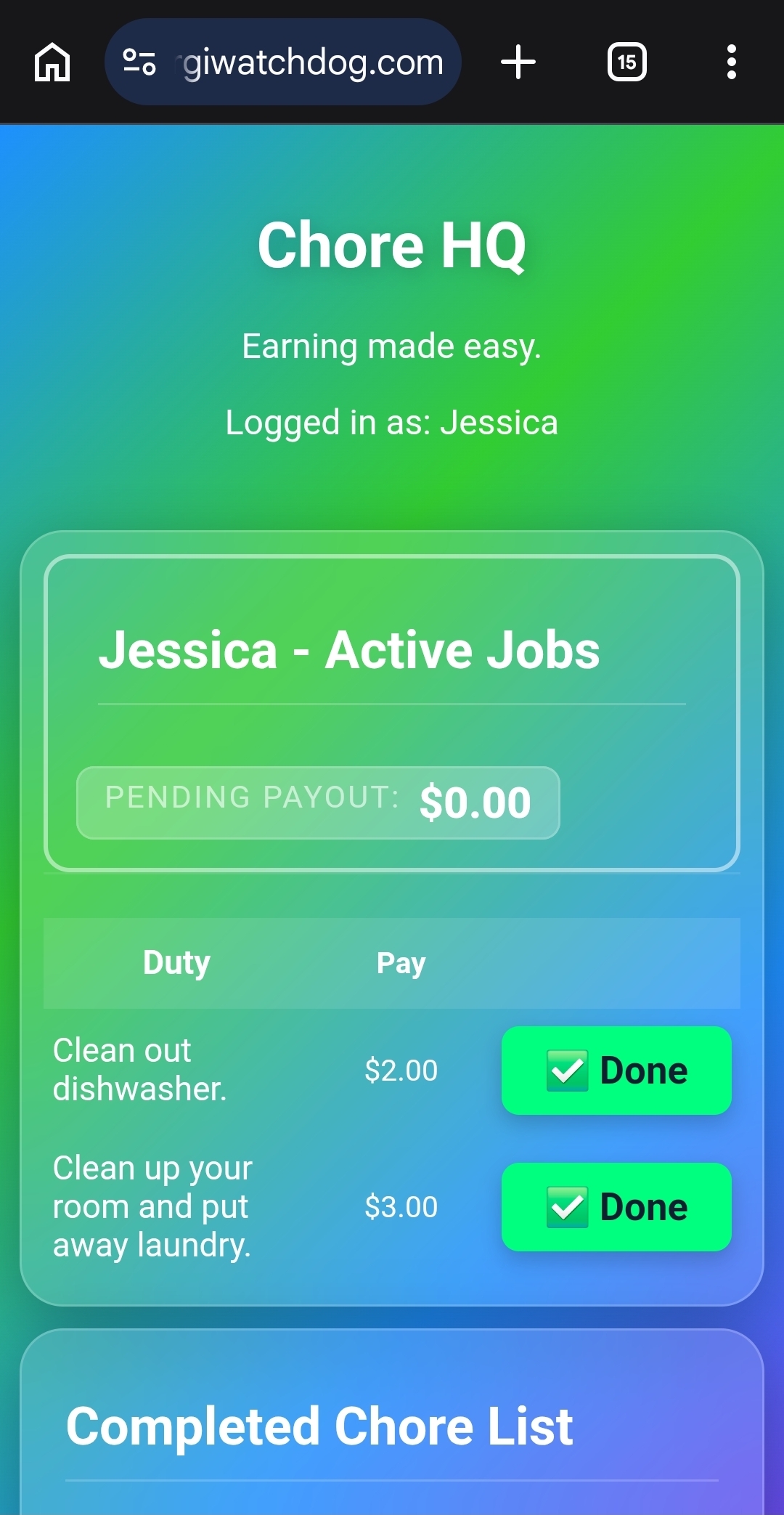
There are confirmation screens before completing the incorrect chores.
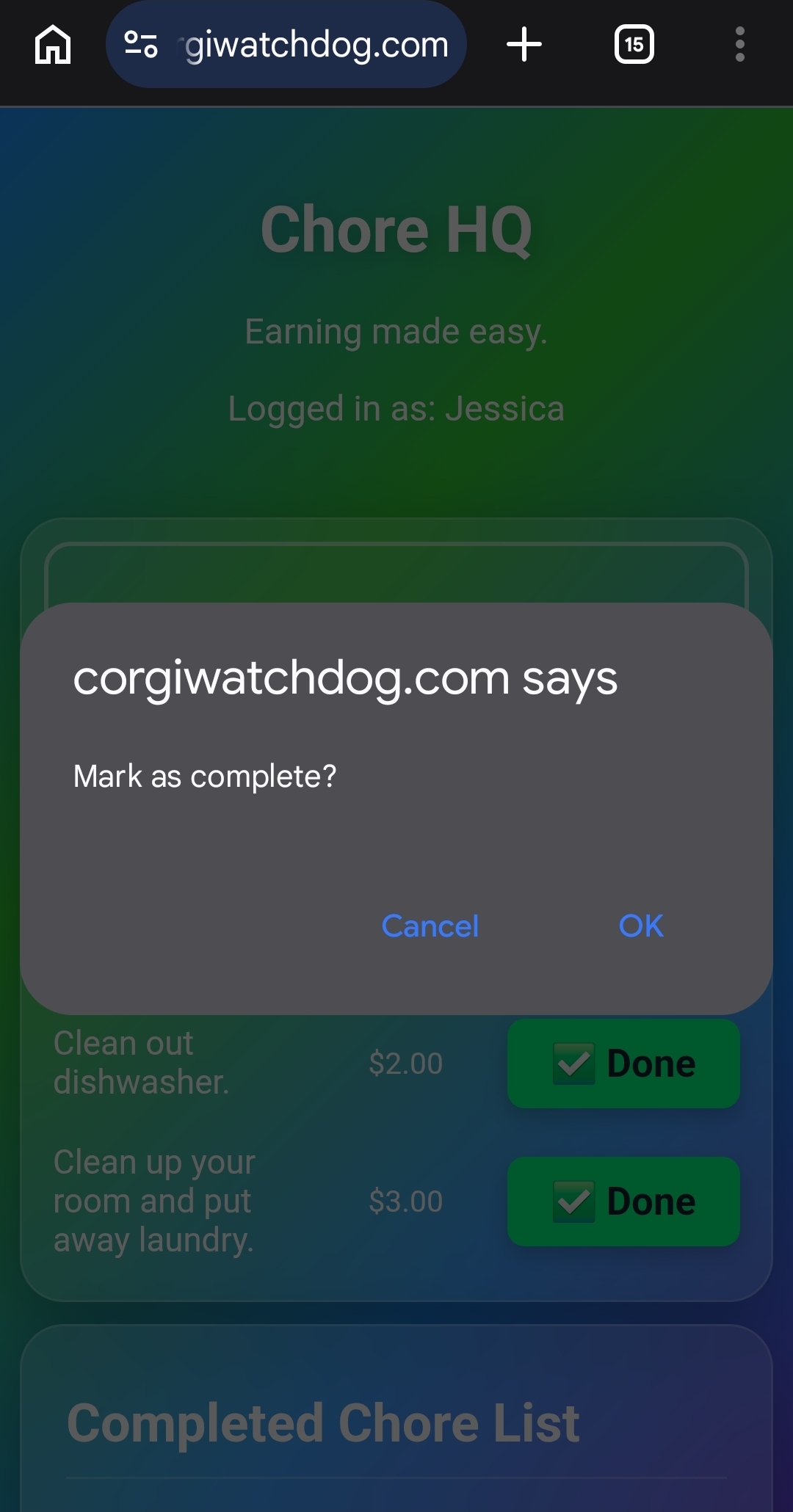
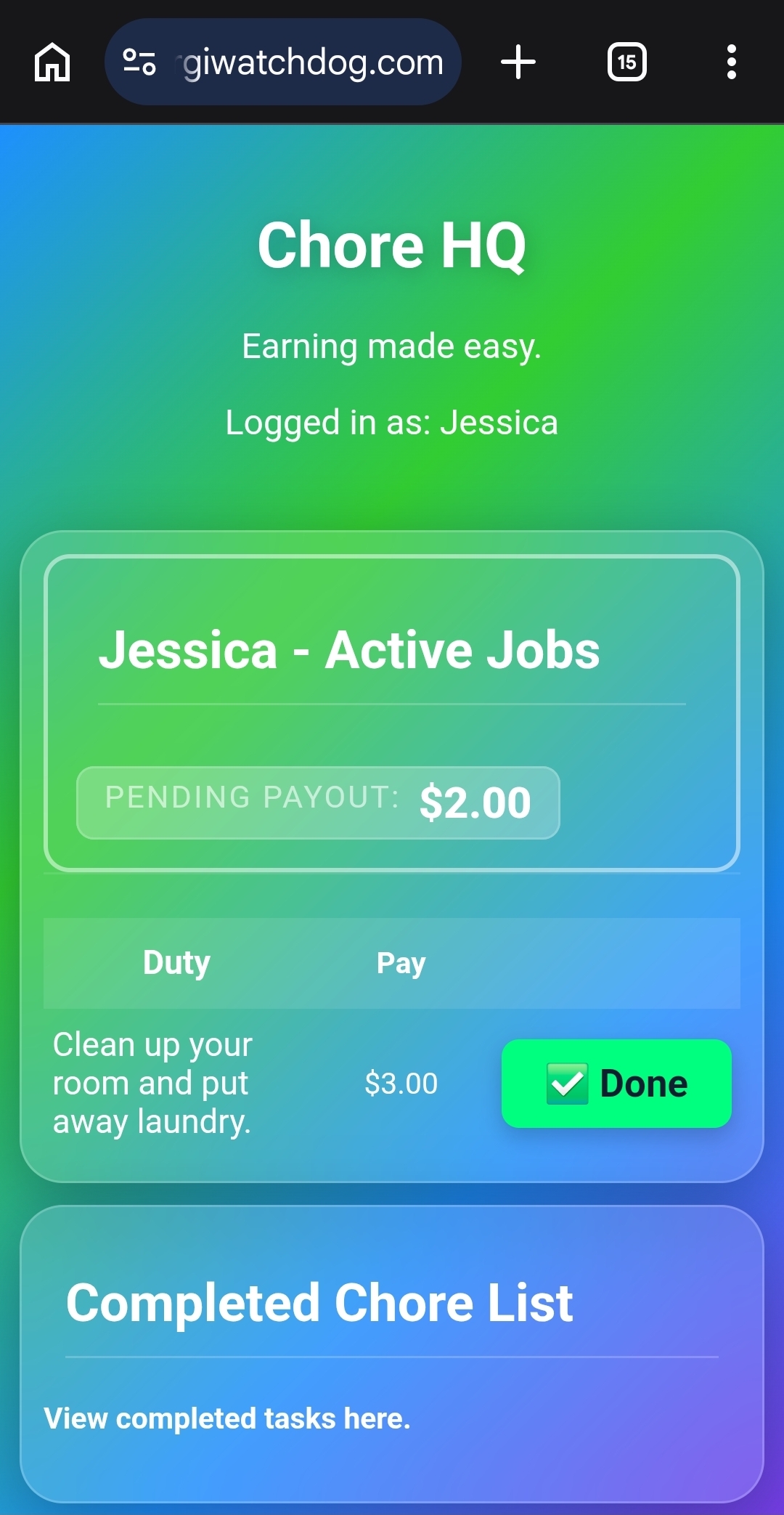
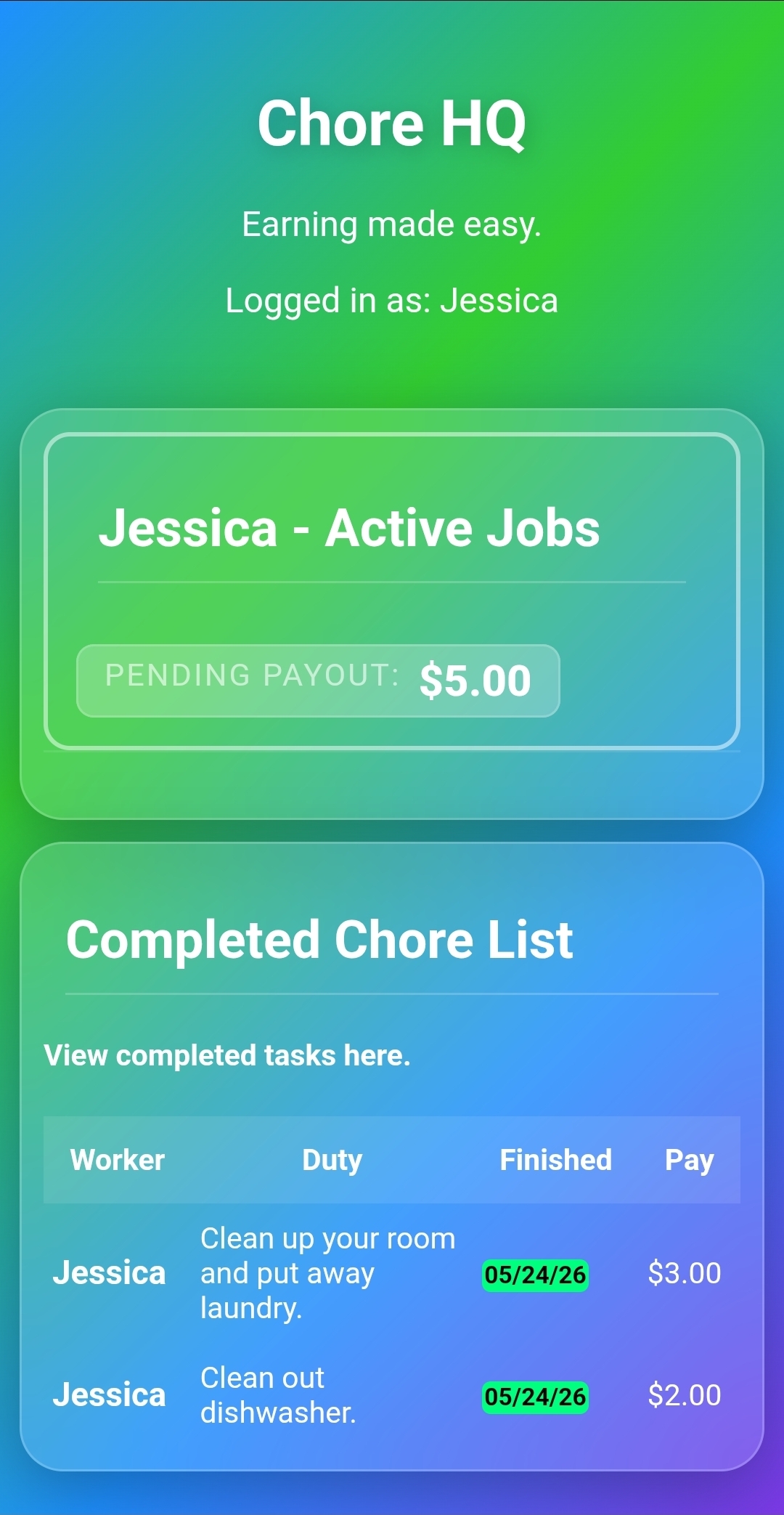
Screen updates with completed chores, assigned chores and now a growing pending payout.
Showing Completed Chores Inside the App.
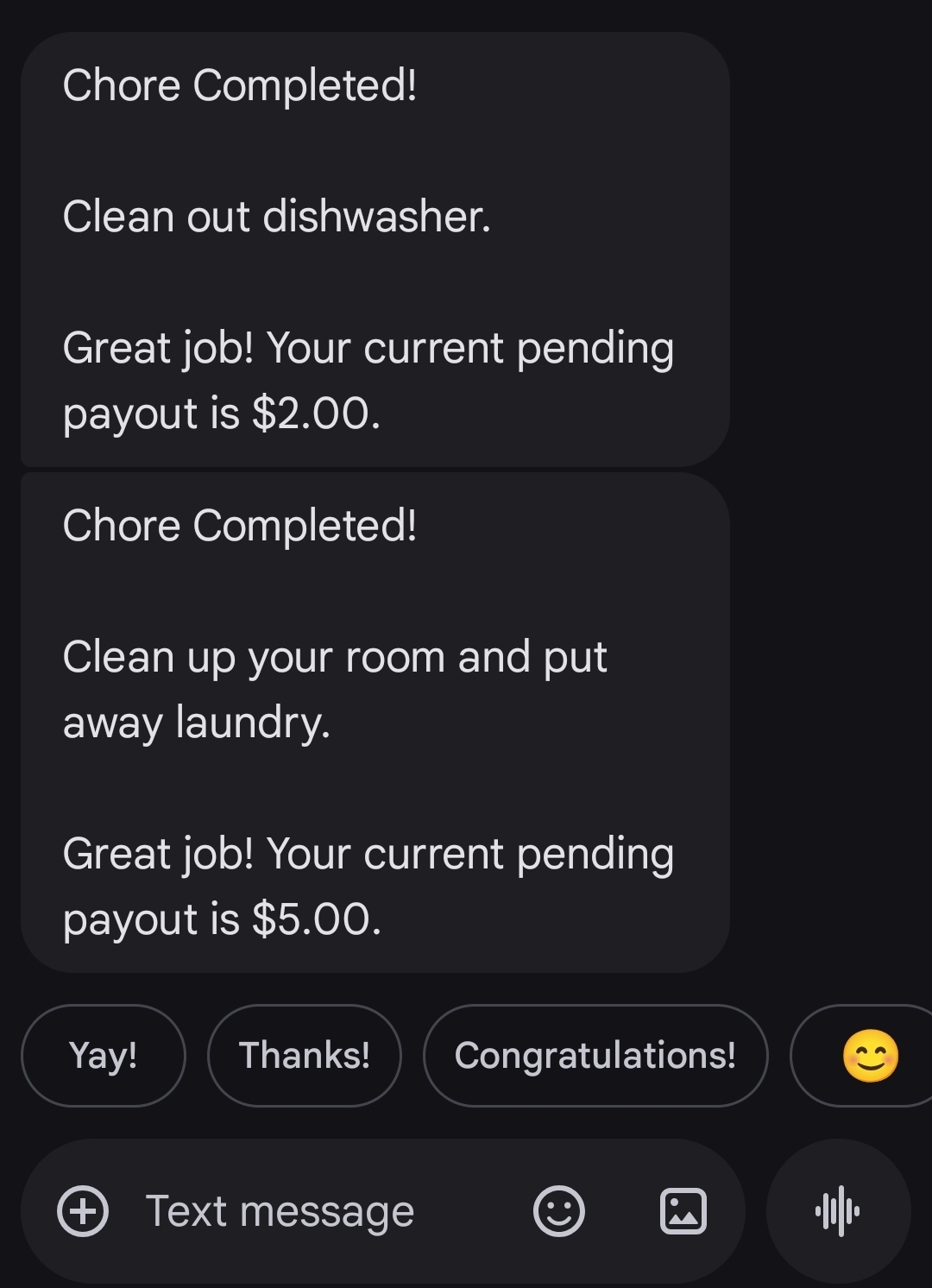
Text Messages sent out as Chores Complete. Pending Payouts are included as they grow.
Emails sent out as Chores Complete.
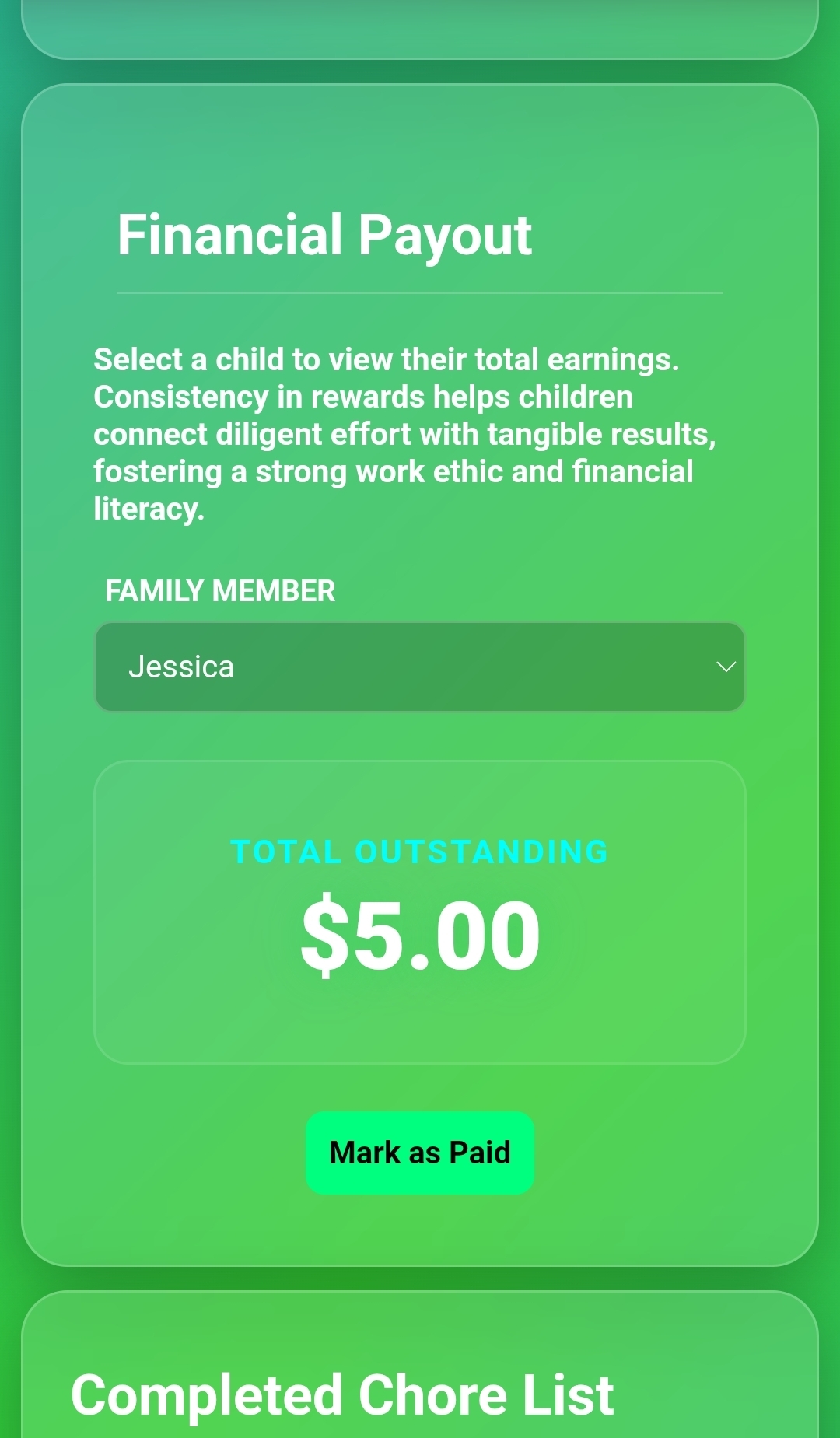
Inside the app: Financial Payout will trigger a payout to a specific child. Use this when you are ready to hand a chore worker some cash.
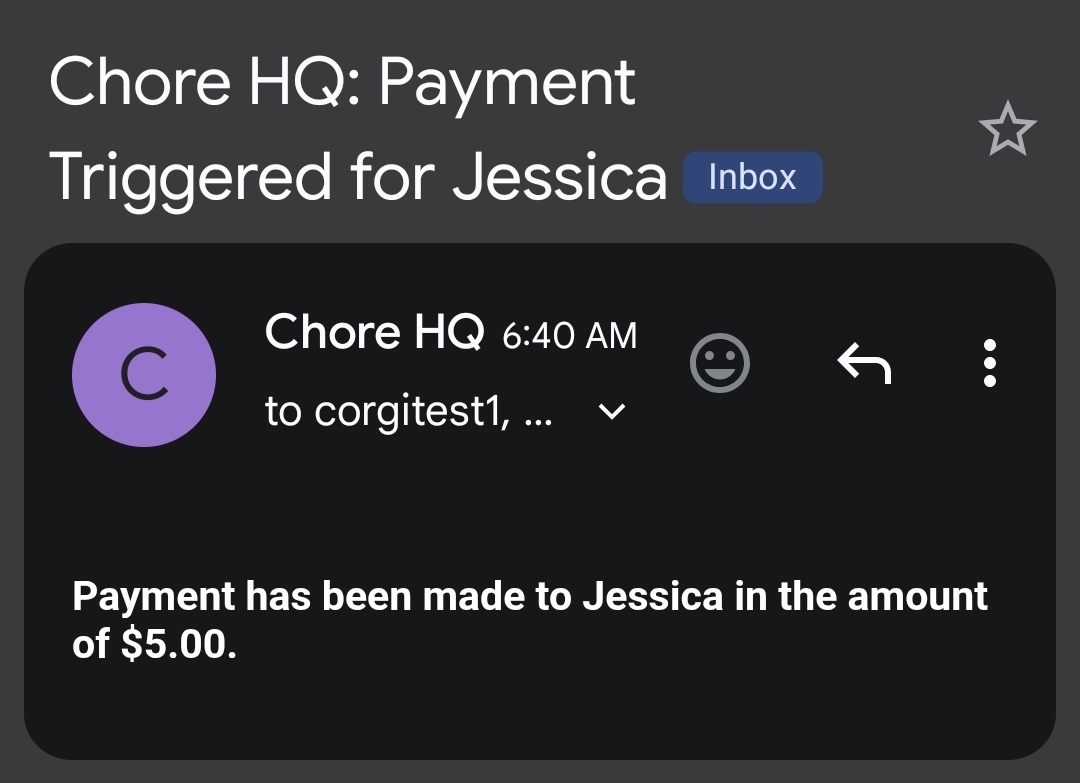
Confirmation email of payout is sent.